
Last updated 3/23/2026
Contents
Reporting Access by Role
Project directors and financial staff members can create and submit SF-428 forms through the Financial Reporting Dashboard on the DoWEA Evaluation Technical Assistance Center (ETAC) website. Other team members within a grantee school district can view but not edit financial forms. Evaluators do not have access to the Financial Reporting Dashboard.
Creating a New SF-428 Form
Use the following steps to create a new SF-428 form or access an existing draft:
- Go to the ETAC homepage.

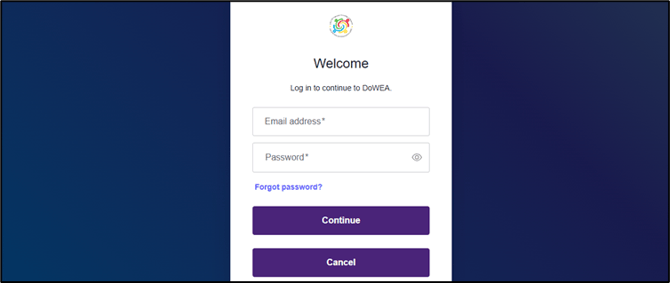
- Sign into your account using the Login button in the top right corner of the homepage.
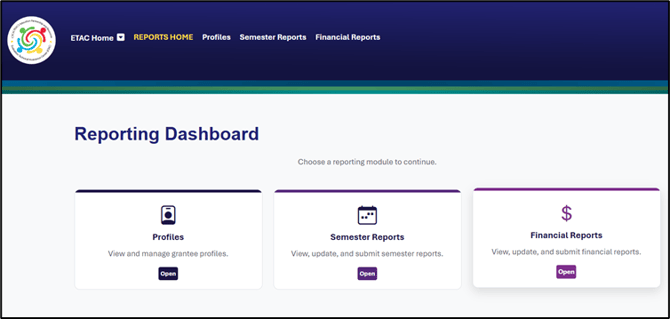
- Select Reporting from the navigation menu to enter the Reporting Dashboard.

- Open the Financial Reports card to enter the Financial Reporting Dashboard.
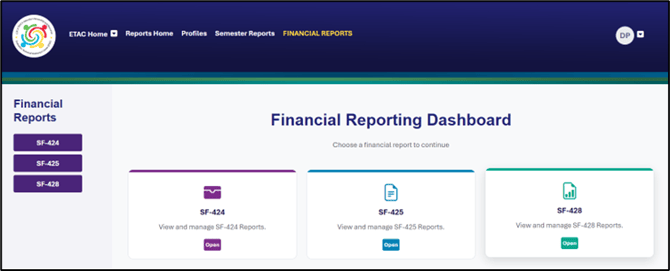
- Select SF-428 from the side menu or open the corresponding dashboard card. Within this category, you will find a list of all grantees, grant projects, and grant years with which your user profile is associated.
- Find the desired grantee and grant year using the search bar and Award Year drop-down menu.
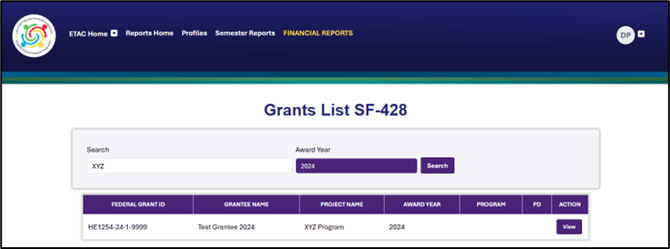
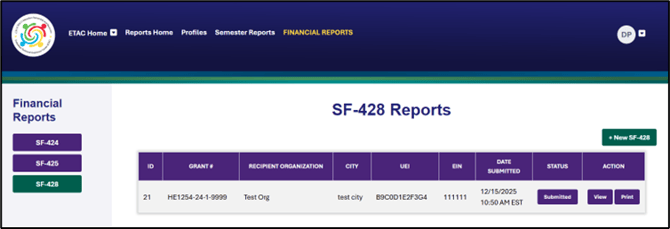
- Select the View button to access all SF-428 Reports for the selected grantee and grant year.

- Select the +New SF-428 button in the upper right to start a new report. To edit an existing SF-428 draft, find the desired form in the table and select Edit.
Filling Out the Form
General Notes
Before You Start: Review the Year, Award Number, and School District preselected in the first drop-down menu on the page. Double check that it reflects your desired combination. Information populates throughout the form based on this initial selection. 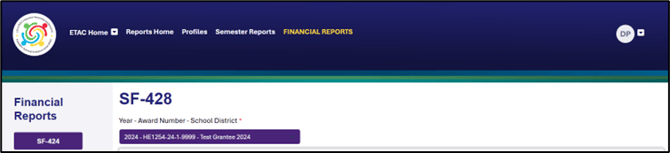
Mandatory Sections: As you complete the form, note that all items marked with a red asterisk are mandatory and must be completed in order to save and submit the form. If you click the Next button before completing all mandatory fields on a given page, an error message will prompt you to provide the missing information before moving forward.
Saving Your Work: To save the report as a draft, complete all mandatory fields and click the Next button at the bottom left corner of the form. After this initial save, you can exit and return to edit the form as needed before submitting.
Items 1-8
1. Federal Agency and Organizational Element to Which Report is Submitted: Prefilled with DoWEA. 
2. Federal Grant or Other Identifying Number Assigned by Federal Agency: Prefilled with the Grant Award Number based on your selections when you created the form. 
3.a-b. EIN and UEI: Enter the grant’s Unique Entity Identifier (UEI) and Employer Identification Number (EIN). 
4. Recipient Organization: Enter the name and full address of the grantee organization.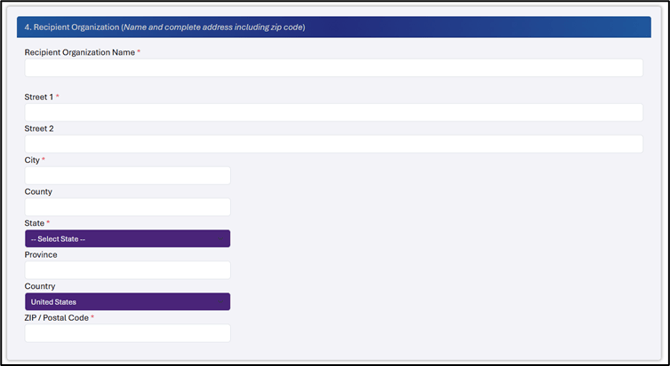
5. Recipient Account or Identifying Number: Enter the corresponding numerical ID.
6-7. Attachment and Supplement Sheet: Select the descriptors that best describe the attachment you are uploading. 
8. Comments and Upload: If needed, enter additional comments in the text field provided and use the Upload button to add your attachments to the form. 
Signature
9. Electronic Signature: Enter your full legal name, use the drop-down menus to add any prefixes and suffixes, type your signature in line 9.b., and add your contact information in lines 9.c-d. Note that when you submit the form, the submission date will be added automatically to line 9.e.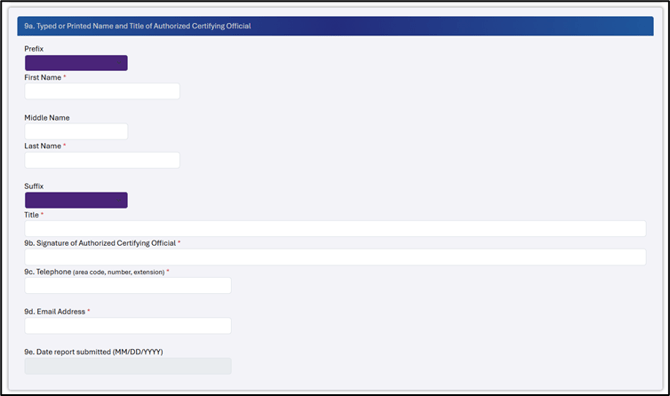
Save and Continue: After you have completed all mandatory fields, click the Next button at the bottom left corner of the form. This will save the form as a draft and proceed to the final screen. After this initial save, you can exit and return to edit the form as needed, or proceed with submitting the report to DoWEA for approval.
Submitting the Form
SF-428 Approval
Current Status: This section displays the status of the form (currently draft) and records the username or email address of the person who last saved the form. The status updates when the form is submitted.

Change Status: Click the Submit for Approval button once you have checked over your entries and are ready to send the completed form to the DoWEA program team for review and approval.
Note: Clicking Submit for Approval will lock the form for further editing and send it to the DoWEA program team. You cannot retract or edit a form after it has been submitted. Forms you create are not visible to the DoWEA program team until they are submitted.
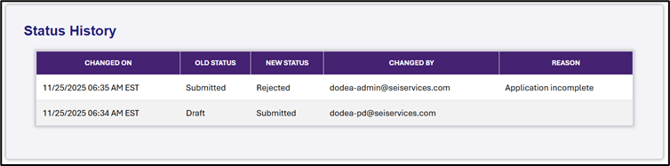
Status History: After you click Submit for Approval, the status history will update with the timestamp of your submission, the new status, and the person who made the change. A new Timestamp row appears for each new status through which the form passes (Draft, Submitted, Rejected, Resubmitted, etc.).
Next Steps
Update a Submitted Report: If, after submitting a report, you need to make an update, please contact ETAC at support@dodeagrants.org.
Note: Making updates involves returning a submitted form to Draft status. After making your updates, you will need to resubmit your form.
View or Print Your Report: Return to the SF-428 area of the Financial Reporting Dashboard and use the filters to locate your report. Use the corresponding buttons to View the report, or Print a copy for your records.

Check Report Status: The submitter will receive an email notification when the DoWEA program team either approves or rejects the submitted report. To view details about the status change, use the filters in the SF-428 area of the Financial Reporting Dashboard to locate the report. Then, click on the Status button (Submitted, Approved, Rejected, etc.) to view the Status History table. 
Complete Revisions and Resubmit (if needed): In the event that the DoWEA program team does not approve the form as-is, follow the directions provided in the Reason column of the Status History table to revise and resubmit the form.
Additional Guidance
Need support with another aspect of the Financial Reporting Dashboard or a different type of financial report? These articles can help:
- Navigating the Financial Reporting Dashboard
- Budget Change Request (SF-424)
- Annual Federal Financial Report (SF-425)