
Last updated 4/3/2026
To create a new grantee login, follow the steps below:
- Go to the ETAC homepage.

- Click the Signup link in the top right corner of the ETAC homepage.
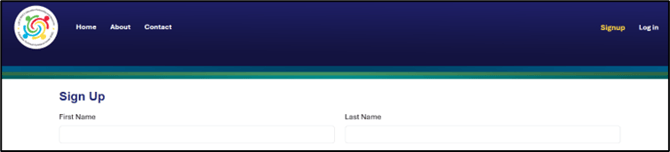
- Complete the Sign Up form. Be sure to enter all information below:
- First Name
- Last Name
- Title
- Email Address
- Role in grant (Select the role that most closely aligns with your responsibilities.)
- Project Director: Responsible for performance reporting and may also submit financial reports.
- Evaluator: Responsible for providing evaluation narrative reports; needs access to view the performance reporting area.
- Finance Staff: Responsible for submitting or supporting the project director in submitting financial reports.
- Team Member: Supports the project director and/or financial staff; needs to view but not responsible for submitting reports.
- Grantee Name and Grant Year (Select all grant projects you are supporting by checking the boxes for the corresponding combination of grantee and grant years.)
Note: You can filter the list by typing your grantee name in the Search Grantee Name field and clicking the Search button.
- Click Submit Request.
Next Steps
Await Account Activation: ETAC staff will review the new user request and activate it within 5 business days. You may be contacted for additional information before the account is activated.
Verify Your Activated Account: Once ETAC has activated your account, you will receive an email confirmation from no-reply@auth0user.net with an account verification link. To finish setting up your account:
- Click the verification button link in the email.
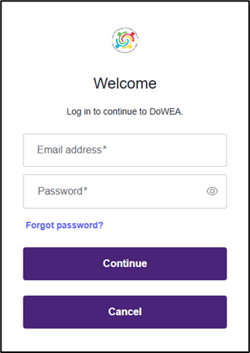
- Go to the ETAC website and click Log In.

- On the Log In page, click "Forgot password?" and follow the process for setting your new password. The password reset email will come from the same no-reply address.
- If you experience any difficulties with this process, reach out to ETAC for support via support@dodeagrants.org.
Communicate Staffing Changes: If a staffing change has occurred and the account is for a new project director, the prior or current project director should:
- Confirm the change with their DoWEA monitoring specialist. This message should include the contact information and resume of the new project director.
- Notify ETAC of the change by emailing support@dodeagrants.org. This message should include:
- The federal grant award number
- The new project director’s
- First and last name
- Title
- Email address
- Effective start date
- Instructions for the current or prior project director’s account (e.g., downgrade the level of access or remove it from the Grantee Profile)