
Last Updated 8/31/2026
Contents
- Reporting Access by Role
- Creating a New SF-424 Form
- Filling out the Form
- Submitting the Report
- Next Steps
- Additional Guidance
Note on Reference Images: Throughout the user guide to follow, the actions described are accompanied with screen captures of the corresponding areas of the ETAC website. Look for yellow text in the navigation menu and green buttons in the reporting portal. These colors signal which items have been hovered or selected.
Reporting Access by Role
Project directors and financial staff members can create and submit SF-424 forms through the Financial Reporting Dashboard on the DoWEA Evaluation Technical Assistance Center (ETAC) website. Other team members within a grantee school district can view, but not edit, financial forms. Evaluators do not have access to the Financial Reporting Dashboard.
Creating a New SF-424 Form
Use the following steps to create a new SF-424 form or access an existing draft:
- Go to the ETAC homepage.

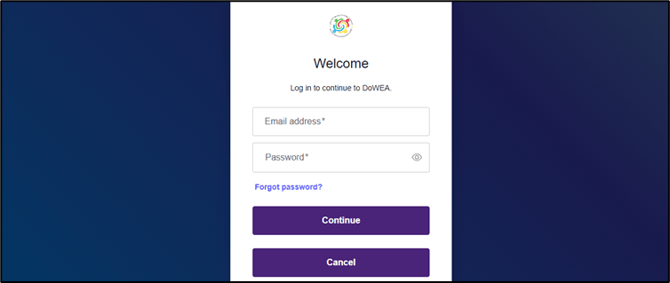
- Sign into your account using the Login button in the top right corner of the homepage.
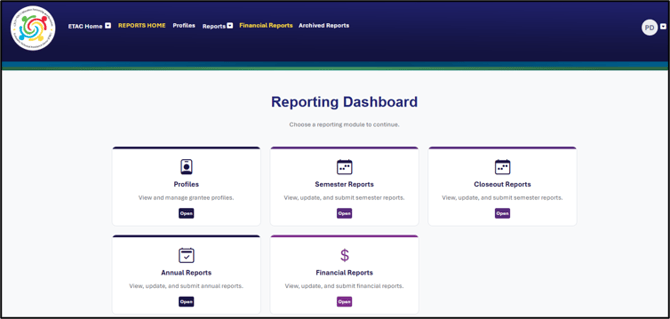
- Select Reporting from the navigation menu to enter the Reporting Dashboard.

- Open the Financial Reports card to enter the Financial Reporting Dashboard.
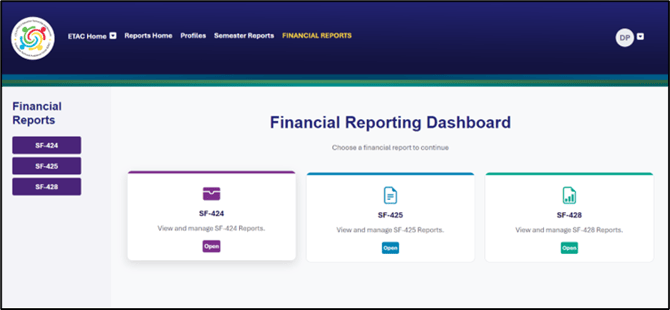
- Select SF-424 from the side menu or open the corresponding dashboard card. Within this category, you will find a list of all grantees, grant projects, and grant years with which your user profile is associated.
- Find the desired grantee and grant year using the search bar and Award Year drop-down menu.

- Select the View button to access all SF-424 Reports for the selected grantee and grant year.

- Select the +New SF-424 button in the upper right corner to start a new report. To edit an existing SF-424 draft, find the desired form in the table and select Edit.

Filling Out the Form
General Notes
Prefilled Items: For your convenience and to support reporting accuracy, some lines have been prefilled based on your user profile and the profile of the grantee and grant year for which you are reporting. If you need assistance updating a prefilled line that is locked for editing, contact ETAC at support@dodeagrants.org.
Mandatory Sections: As you complete the form, note that all items marked with a red asterisk are mandatory and must be completed in order to save, move through, and submit the form. If you click the Next button before completing all mandatory fields on a given page, an error message will prompt you to provide the missing information before moving forward.
Saving Your Work: To save the request as a draft, complete all mandatory information on the first page and click the Next button in the bottom right corner of the form. After this initial save, you can exit and return to editing the form as needed before submitting.

Note: Clicking the Next button saves all information entered on the current page of the form. If you want to exit and return to the form later, be sure to click Next before exiting to save your most recent entries.
Page 1 (Items 1-7)
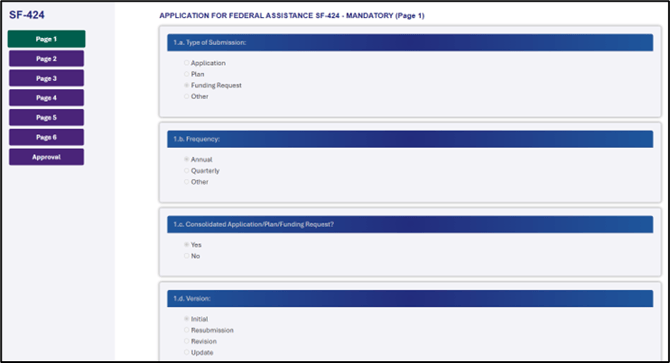
1.a-1.d. These lines are prefilled as follows:
- a. Type of Submission: Funding Request
- b. Frequency: Annual
- c. The Consolidated Application/Plan/Funding Request: Yes
- d. Version: Initial
2. Date Received: Prefills with the date the form was submitted.
3. Applicant Identifier: Left empty and locked for editing because not applicable.
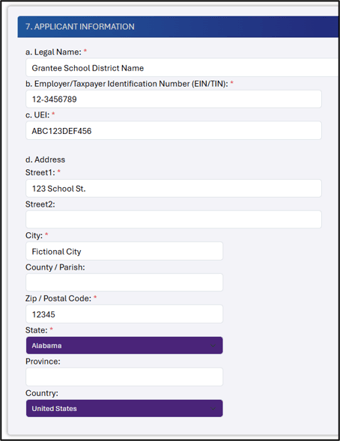
4.a. Federal Entry Identifier: Prefills automatically when the Unique Entity Identifier (UEI) is entered in line 7.c.
4.b. Federal Award Identifier: Prefilled with the Federal Grant Award number from the Grantee Profile.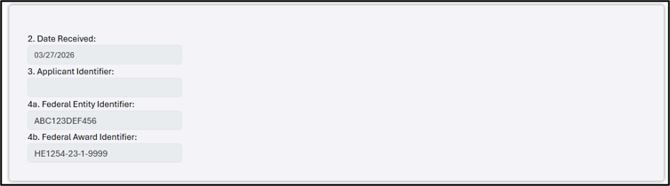
5-6. State Only: Left empty and locked for editing because not applicable. 
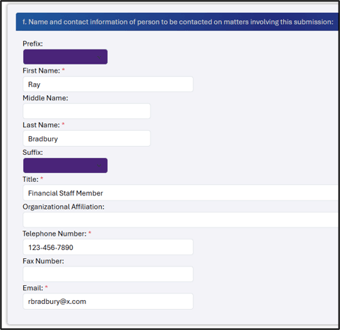
7.a-f. Applicant Information: Fill out all required sections marked with red asterisks.
Note: The point of contact entered in 7.f. should be the designated project director or the financial staff member for the grant project.
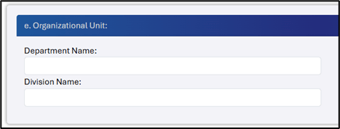
Save and Continue: Click the Next button to save the form as a draft and proceed to the next page.
Page 2 (Items 8-12)
8.a-b. Type of Applicant: Prefilled with G: Independent School District. The additional description line is not necessary and is therefore locked for editing. 
9. Name of Federal Agency: Prefilled with DoWEA. 
10.a. Assistance Listing Number: Prefilled with 12.556, which is the Federal Domestic Assistance Number for DoWEA grants.
10.b. Assistance Listing Title: Select the appropriate grant type (MCASP, WLARP, or Construction) from the drop-down menu. 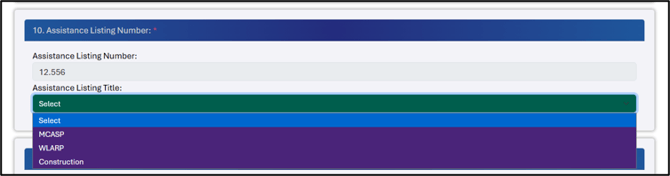
11. Descriptive Title of Applicant’s Project: Enter the official title of your grant project as listed in your Grantee Profile.
12: Areas Affected by Funding: Provide a general description in the field provided.
Save and Continue: Click the Next button to save your work on the current page and proceed to the next page.
Page 3 (Items 13-16)
13. Congressional Districts Of:
- 13.a. Applicant: Enter the grantee's congressional district.
- 13.b. Program/Project: Enter the grant project name.

14.a-b. Funding Period: Enter the start and end dates of the funding period for which you are submitting a request using the calendar picker or by type in MM/DD/YYYY format. 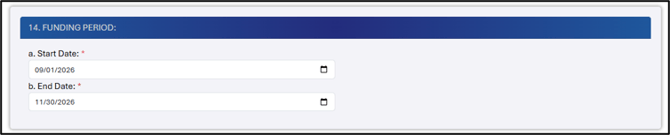 \
\
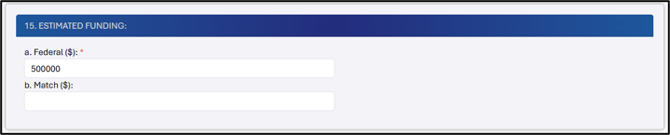
15. Estimated Funding:
- 15.a. Federal ($): Enter the full amount of the grant award.
- 15.b. Match ($): This line is optional and may remain blank.
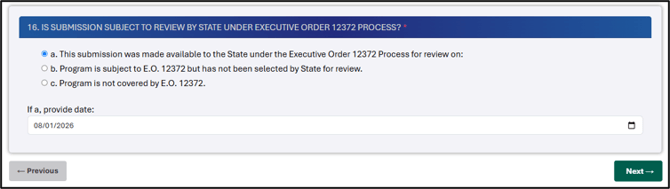
- Select the option that best reflects the state review status of your submission. For most grantees, this will be option A.
- If you selected option A, enter the corresponding date in the line below using the calendar picker or typing in MM/DD/YYYY format. Otherwise, leave the date blank.
Save and Continue: Click the Next button to save your work on the current page and proceed to the next page.
Page 4 (Items 17-18)
17. Is the Applicant Delinquent on Any Federal Debt?: If you select Yes, be sure to also provide an explanation in the corresponding text field at the bottom of the next page.
18. Electronic Signature: Complete the electronic signature certification in your capacity as the Authorized Certifying Official.
- Certification Statement: Read the certification statement and select **I Agree**.

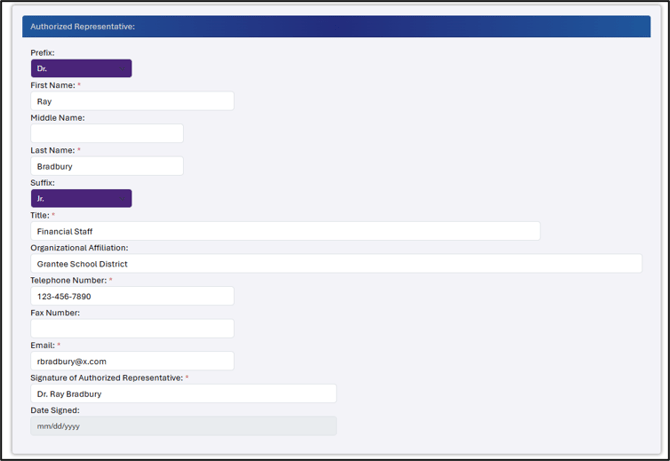
- Authorized Representative: Enter your full name, title, contact information, and signature. Note that the submission date will be added automatically when you submit the form.
Save and Continue: Click the Next button to save your work on the current page and proceed to the next page.
Page 5 (Consolidated Application/Plan/Funding Request Explanation)
Date, School District, Award Year, and Award Number, Project Title, Project Director, and Total Award Amount: Prefilled based on information associated with your entries on earlier pages of the form. Contact ETAC at support@dodeagrants.org if any of this information appears incorrect.
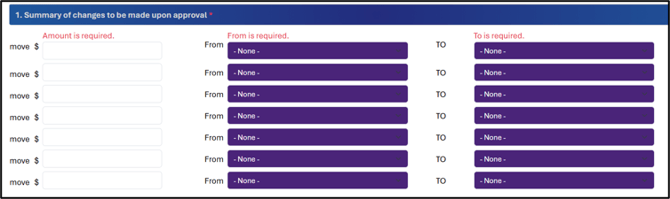
- Move $: For each row, enter the dollar amount you are requesting to move from one budget category to another.
- From: For each row, use the drop-down menu to select the budget category from which you are requesting to move the funds.
- To: For each line, use the drop-down menu to select the budget category to which you are requesting to move funds.
- Repeat: Complete as many rows as needed for your request.
Note: Different budget categories apply to non-construction (MCASP and WLARP) grants vs. construction grants as listed below. If the grant categories do not match your grant type, go back to Page 2, question 10.b. and ensure you have selected the correct grant type from the Assistance Listing Title dropdown.
Non-Construction Grant (MCASP and WLARP) Budget Categories:
- Personnel
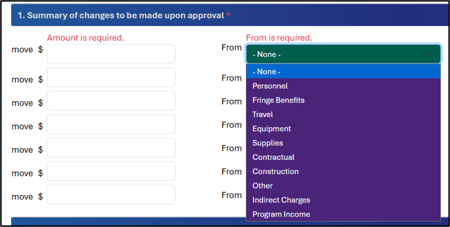
- Fringe Benefits
- Travel
- Equipment
- Supplies
- Contractual
- Construction
- Other
- Indirect Charges
- Program Income
Construction Grant Budget Categories:
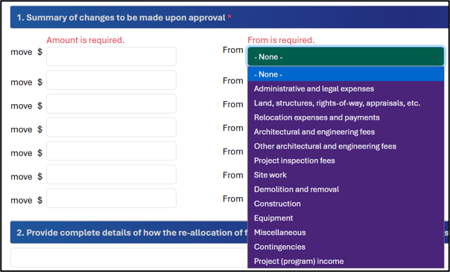 Administrative and legal expenses
- Land, structures, right-of-way, appraisals, etc.
- Relocation expenses and payments
- Architectural and engineering fees
- Other architectural and engineering fees
- Project inspection fees
- Site work
- Demolition and removal
- Construction Equipment
- Miscellaneous
- Contingencies
- Project (program) income
2. Provide complete details of how the re-allocation of funds will affect your project (identify the goals/strategies affected): Enter your explanation in the field provided.
3. Specify how the re-allocated funds amongst budget categories will be utilized: Enter your explanation in the field provided.
Applicant Federal Debt Delinquency Explanation: If you answered Yes to Question 17 on the previous page, add your explanation here.
Save and Continue: Click the Next button to save your work on the current page and proceed to the next page.
Page 6 General Directions (for both Non-Construction and Construction Grants)
Before You Start
Ensure the title of Page 6 displays the appropriate form (SF-424A vs. SF-424C) for your grant type (non-construction vs. construction). If the title does not match your grant type, go back to Page 2, question 10.b. and select the correct grant type (MCASP, WLARP, or Construction) on the Assistance Listing Title dropdown.
- The SF-424A applies only to non-construction (MCASP and WLARP) grants.
- The SF-424C applies only to construction grants.
- The sections below provide guidance specific to each of these forms.
Data Entry Tips
- Budget line cells only accept values and negative values (such as “100” or “-100”). Do not enter letters, or symbols such as dollar ($) or plus (+) symbols in these cells. After you have saved the page by clicking Next, you may be able to add commas at the appropriate place values upon returning to edit your budget entries.
- Totals, subtotals, and any non-applicable cells are grayed out and locked to prevent accidental entry.
- Totals and allowable costs calculate automatically. If you want to manually trigger a
 calculation on an SF-424A, click the Calculate and View Totals button at the bottom of the page.
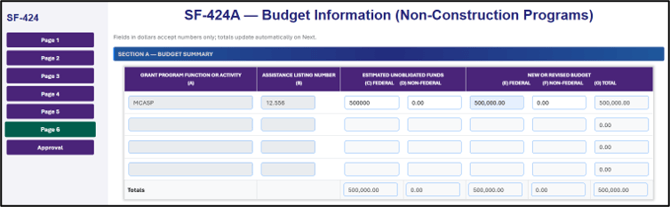
Page 6 (SF-424A - Budget Information [Non-Construction Programs])
Section A - Budget Summary: Enter budget information in the first line; this is the only required line in this section.
- Cell 1.a.: Prefills from 10.b. and is locked for editing.
- Cell 1.b.: Prefills from 10.a. and is locked for editing.
- Cell 1.c and 1.e: Enter federal award amounts greater than zero.
Section B - Budget Categories: Enter the appropriate budget information for each field.
- Column 1 (Current budget allocations):
- The Grant Program title prefills from Cell 1.a. of Section A.
- Enter current budget allocations in Rows A-H and J as applicable.
- Column 2 (Amount to be increased/decreased):
- For each applicable budget category, enter the amount to be added or subtracted. If done correctly, this column should total to zero as no funds are added, only moved between categories.
- Use a minus (-) sign to denote decreases. For example, to decrease the amount by $500, enter “-500”.
-
Columns 3-4: Left empty and locked as they are not applicable.
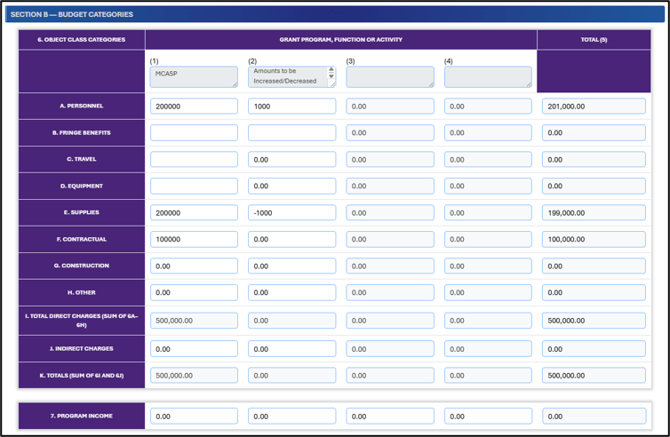
Sections C-F: Left empty and locked as they are not applicable.
Save and Continue: Click the Next button to save your work on the current page and proceed to the next page.
Page 6 (SF-424C - Budget Information [Construction Programs])
Construction Budget Categories: Enter the appropriate budget information for each field.
- Column A (Total Cost): Enter total costs for each applicable budget category.
- Column B (Costs Not Allowable for Participation): Enter any costs not allowable for grant funding coverage.
- Column C (Total Allowable Costs): Automatically calculates total allowable costs by subtracting entries in Column B from those in Column A.
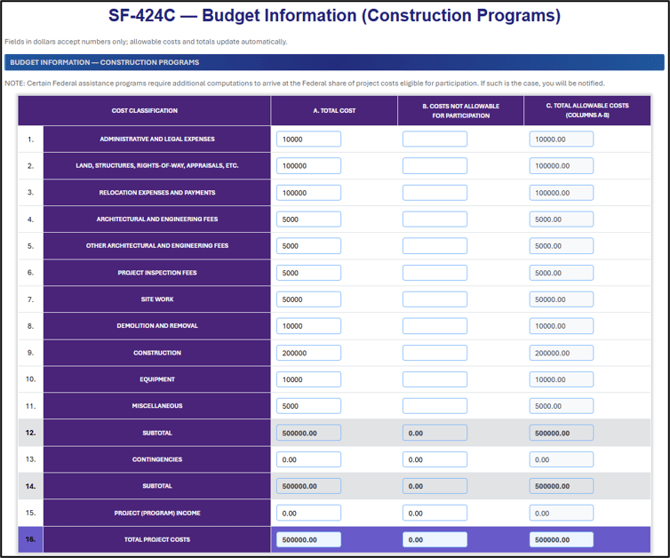
Federal Funding: Consult your original grant budget and Notice of Award for the Federal share percentage. Enter the Federal share percentage in the corresponding field. This will automatically calculate the Federal Assistance Requested from the eligible costs in Cell 16c. 
Save and Continue: Click the Next button to save your work on the current page and proceed to the next page.
Submitting the Report
Approval Page
Current Status: This section displays the status of the form (currently draft) and records the email address of the person who last saved the form. The status updates when the form is submitted.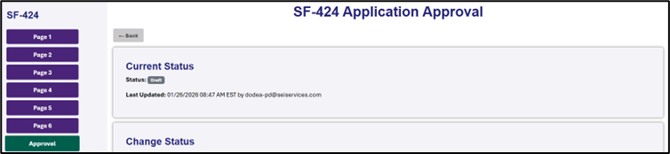
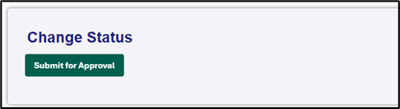 Change Status: Click the Submit for Approval button once you have checked over your entries and are ready to send the completed form to the DoWEA program team for review and approval.
Note: Clicking Submit for Approval will lock the form for further editing and send it to the DoWEA program team. You cannot retract or edit a form after it has been submitted. Forms you create are not visible to the DoWEA program team until they are submitted.
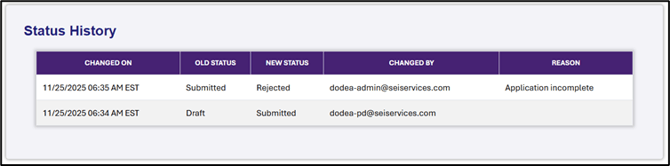
Status History: After you click Submit for Approval, the status history will update with the timestamp of your submission, the new status, and the email address of the person who made the change. A new Timestamp row appears for each new status through which the form passes (Draft, Submitted, Rejected, Resubmitted, etc.).
Next Steps
Update a Submitted Report: After submitting a report, if you need to make an update, please contact ETAC at support@dodeagrants.org well ahead of the annual reporting deadline.
Note: Making updates involves returning a submitted form to Draft status. After making your updates, you will need to resubmit your form.
View or Print Your Report: Return to the SF-424 area of the Financial Reporting Dashboard and use the filters to locate your report. Use the corresponding buttons to View the report, or Print a copy for your records.

Check Request Status: The submitter will receive an email notification when the DoWEA program team either approves or rejects the submitted request. To view details about the status change, use the filters in the SF-424 area of the Financial Reporting Dashboard to locate the report. Then, click on the Status button (Submitted, Approved, Rejected, etc.) to view the Status History table.
Note: The DoWEA program team has 30 days to review budget change requests. If your request is time sensitive, reach out to the DoWEA program team directly at dodea.grants@dodea.edu.
Complete Revisions and Resubmit (if needed): In the event the DoWEA program team does not approve the form as-is, follow the directions provided in the Reason column of the Status History table to revise and resubmit the form. 
Additional Guidance
Need support with another aspect of the Financial Reporting Dashboard or a different type of financial report? These articles can help:
- Navigating the Financial Reporting Dashboard
- Annual Federal Financial Report (SF-425)
- Tangible Personal Property Report (SF-428)