
Last updated 5/28/2026
Contents
- Reporting Cycle
- Reporting Access by Role
- Creating a New Closeout Report
- Navigating the Report Form
- Filling out the Report
- Submitting the Report
- Next Steps
- Additional Guidance
Note on Reference Images: Throughout the following sections, the actions described are accompanied with screen captures of the corresponding areas of the ETAC website. Look for yellow text in the navigation menu and green buttons in the reporting portal. These colors signal which items have been hovered or selected.
Reporting Cycle
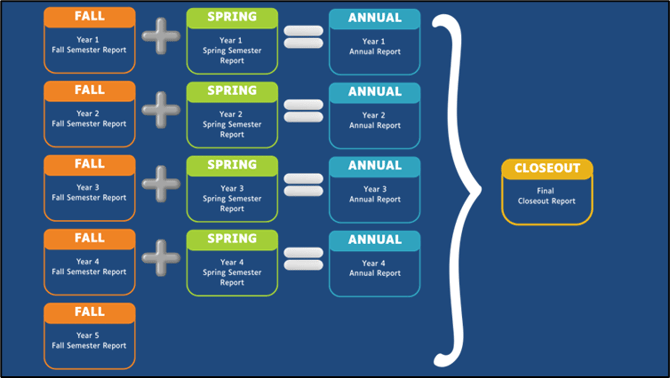
The closeout report is the final, summative report submitted together with the final annual financial report (SF-425) at the end of the five-year grant life cycle.
- Reporting Window: opens in May of the closeout year.
- Due Date: September 30 at 11:59 p.m. ET of the closeout year.
Reporting Access by Role
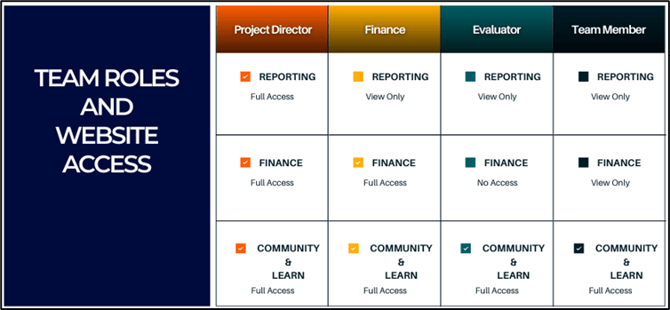
Project directors can create and submit closeout reports through the Reporting Dashboard on the DoWEA Evaluation Technical Assistance Center (ETAC) website. Evaluators and other team members can also use this portal to view previously submitted reports and report drafts that are currently in progress.
Creating a New Closeout Report
Use the following steps to create a new Closeout Report form or access an existing draft:
-
Go to the ETAC homepage.

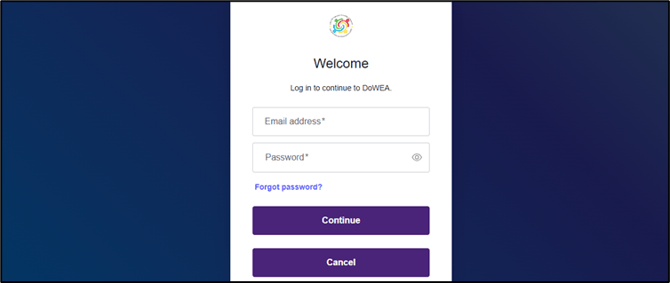
- Sign into your account using the Login button in the top right corner of the homepage.
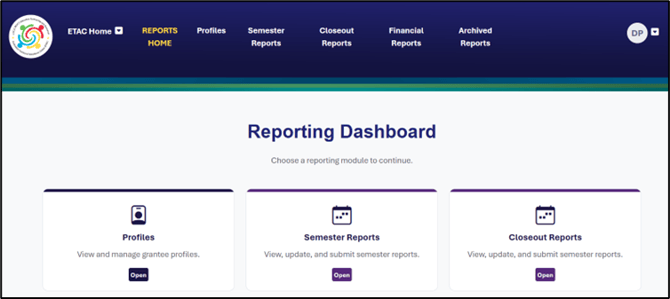
- Select Reporting from the navigation menu to enter the Reporting Dashboard.

- Open the Closeout Reports card to pull up the Closeout Reports Grants List. Within this category, you will find a list of all grants with which your user profile is associated.
- Find the desired grant using the Keyword Search and Award Year drop-down menu.
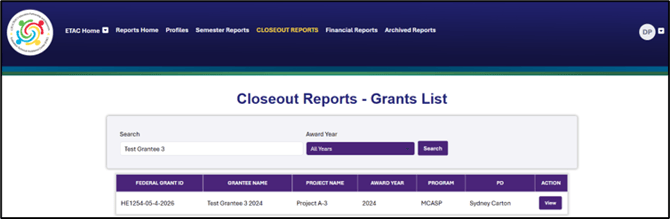
- Select the View button to access the closeout report for the desired grantee and grant year. (Note that closeout reports submitted prior to 2026 are located in Archived Reports.)

- Select the New Report button in the upper right corner to start a new closeout report form. To work on an existing closeout report draft, find the desired report in the table and select View or Edit as applicable to your role.

- Select the current grant reporting period (spring of the current year) from the Select Reporting Period drop-down menu and click the Create Report button.
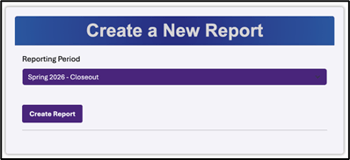
Note: You will only be able to create a new report during an active closeout reporting window. ETAC emails an announcement to all grantees when the reporting window opens.
Navigating the Report Form
 Navigation Buttons: Use the Next and Previous buttons pinned to the bottom right corner of your screen to advance to the next page or go back to the previous page.
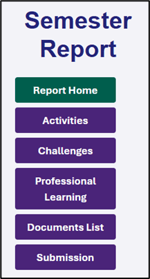 Sidebar: Jump directly to specific sections of the report using the sidebar on the left side of the screen (as pictured to the right), which lists all sections of the report and provides links for easy access.
Instructions: Before beginning a section, read any directions posted at the top of the page beneath the blue banner.
Hover-for-Help Icons: Hold your cursor over the yellow question symbols throughout the form for additional information, such as tips, definitions, and examples.
Prefilled Items: For your convenience and to support reporting accuracy, some lines have been prefilled based on your grant profile. If you need assistance updating a prefilled line that is locked for editing, contact ETAC at support@dodeagrants.org.
Mandatory Sections: Required fields denoted with a red asterisk must be completed in order to execute actions such as attaching a document or submitting the report. If you attempt to proceed to the next step without completing a required field, an error message will prompt you to provide any necessary information before moving forward.
Note: If a text field is required but does not apply or you have nothing to report for that section, enter “NA”.
Saving Your Work: When creating a new report, the system automatically saves it as an In Progress draft. As you edit the report, use the Save buttons provided to ensure your entries are recorded before navigating away from a page or exiting the report draft.
Filling Out the Report
Report Home
Before You Start: Review the Grantee and Federal Grant ID in the banner and Grantee Summary at the top of the page. Double check that these reflect your desired combination. Information populates throughout the form based on these initial selections.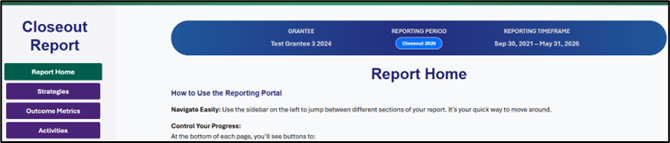

Grant Roles and Contacts: Use the Edit Contacts button to open a pop-up window where you can add or update the project director, financial staff, and evaluator contacts listed under Grantee Summary. Click the Save button before returning to the Report Home page to ensure your updates are preserved. Contact updates also populate to your Grantee Profile upon report submission. 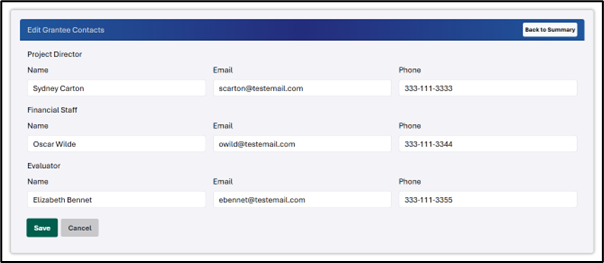
Target Schools and Target School Enrollment: This section is prefilled based on the Grantee Profile which can be accessed through the Reporting Dashboard or via the Reporting navigation menu. 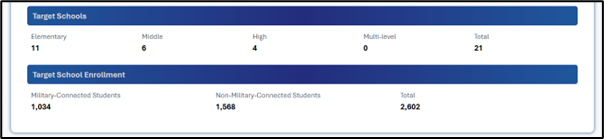
Note: Target school and target school enrollment numbers reflect the project narrative in the original grant application. These numbers should remain consistent with the original project narrative throughout the life of the grant; they should not be updated based on the current reporting year. Contact ETAC at support@dodeagrants.org for assistance if the numbers in the form do not match your original project narrative.
Goals, Strategies, Outcomes, and Statuses: This section is prefilled based on information in the Grantee Profile—drawn from the original project narrative and any updates approved by the DoWEA program team—as well as previously submitted reports. Use the hover-for-help icons (yellow question symbols) to view definitions for each category.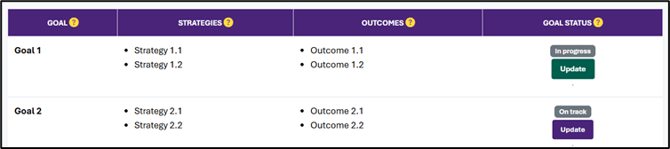
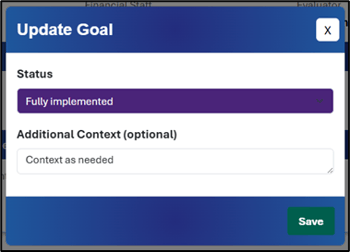
Goal Status: After reviewing each project goal, use the Update button on the Status column to open a pop-up window where you can select the appropriate status:
- Fully Implemented
- Partially Implemented
- Not Implemented
If desired, use the optional Additional Context text field in the window to provide a brief explanation of the rationale for your selection.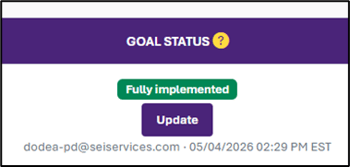
Save Your Progress: Click Save before exiting the window to preserve your updates with a new timestamp.
Strategies
This section allows for reporting on the three most-impactful strategies associated with each project goal. Review each strategy in the table, add new strategies (up to three per goal), and remove old strategies as needed. The reporting period for this section is year 5 of the grant. (October 1 to May 31).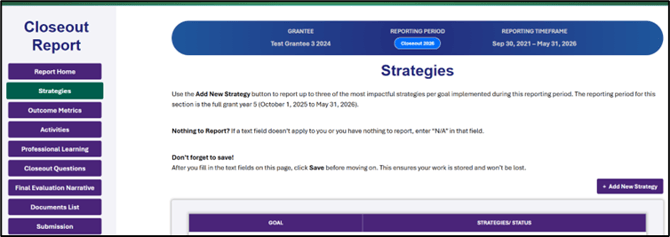
Review/Update Existing Strategies: To view and update details of a strategy listed in the table, select the Update button in the corresponding row.
Add New Strategy: Use the +Add New Strategy button to report a strategy not already listed.
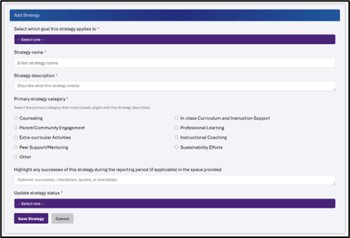
In the Update/Add Strategy pop-up window, follow the prompts and respond to all related questions using the drop-down menus, radio buttons, and text boxes.
Be prepared to provide or update the following information:
- The goal with which the strategy is most closely associated
- Strategy name and description
- Strategy category (options below)
- Counseling
- Parent/Community Engagement
- Extra-Curricular Activities
- Peer Support/Mentoring
- In-class Curriculum/Instruction Support
- Professional Learning
- Instructional Coaching
- Sustainability Efforts
- Other
- Strategy status
- Any successes of this strategy during the reporting period
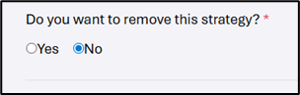 Delete Strategy: To remove an existing strategy that no longer applies, toggle the radio button on the final question in the window to Yes.
Save Your Progress: Click Save Strategy before exiting the window to preserve your updates.
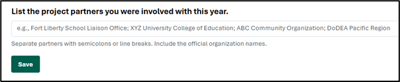 Project Partners: After reviewing all entries in the Strategies section table, list any project partners in the final text field at the bottom of the page.
Save Your Progress: Click the Save button at the bottom of the page to ensure your project partners entry is recorded before moving to the next section.
Outcome Metrics
This section displays the outcome metrics associated with each project goal. Review each outcome metric, update it with values for the reporting period, and add any new metrics as needed. The reporting period for this section is year 5 of the grant. (October 1 to May 31).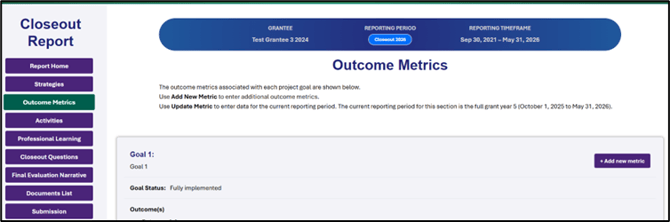
Review/Update Existing Metric: To view details of and enter data for an outcome metric listed in the table, click the Review button in the corresponding row.
Add New Metric: Use the +Add New Metric button to report a metric not already listed.
In the Review/Add Outcome Metric pop-up window, follow the prompts and respond to all related questions using the drop-down menus, radio buttons, and text boxes.
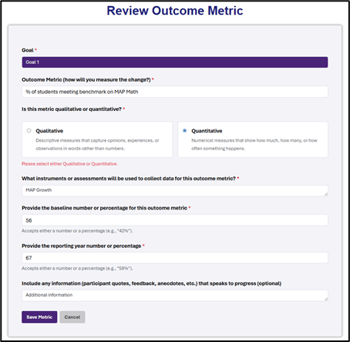 Be prepared to provide the following information:
- The goal with which the outcome metric is associated
- The outcome metric (how change is measured)
- The type of metric (qualitative or quantitative)
- Instruments or assessments used to collect data
- Baseline number or percentage
- Reporting year number or percentage
- Any information (such as quotes, feedback, and anecdotes) that speaks to progress (optional)
Save Your Progress: Click the Save Metric button at the bottom of the window to ensure your updates are preserved.
Activities
This section allows for reporting on up to three most-impactful activities for the reporting period. Previously reported activities prefill to the activity table from the prior reporting period. These may be edited (or deleted and replaced with new activities) as needed. The reporting period for this section is the Spring semester of year 5 of the grant. (January 1 to May 31).
Note: Activities are holistic and may apply across the project. You will be asked to select the goal with which each activity is most closely associated, but reported activities can support multiple goals.
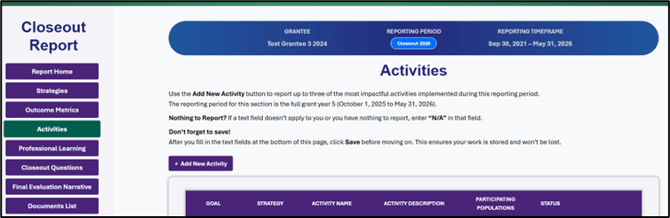
Edit Existing Activities: To review or make changes to an activity and its status, use the corresponding Edit and Delete buttons as needed.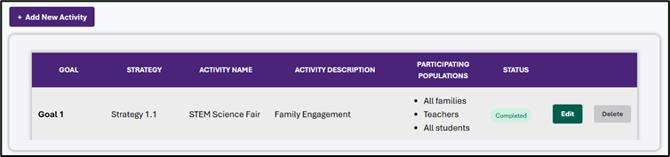
Add Activity: Use the +Add New Activity button to add up to three most-impactful activities for the reporting period. This button will only appear if the three-activity maximum has not been met.
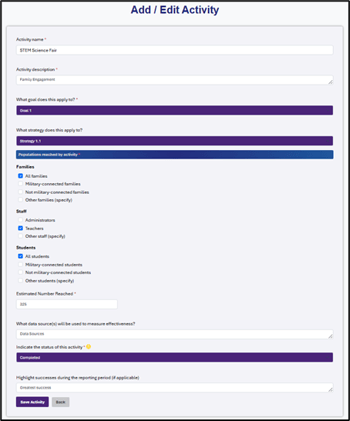 In the Add/Edit Activity window, follow the prompts and respond to all related questions using the drop-down menus, multiple selection boxes, and text boxes.
Be prepared to provide the following information:
- The activity name and description
- The goal and strategy with which the activity is most closely related
- Populations and numbers reached
- Data sources for measuring effectiveness
- The status of the activity
- Successes of this activity during the reporting period
Save Your Progress: Click the Save Activity button at the bottom of the window to ensure the entry is added to the activity table.
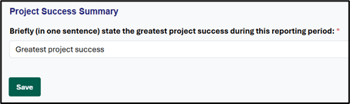 Project Success Summary: After adding and/or updating the three most-impactful activities, highlight the most significant success of the project during the reporting period. Please keep your response to one concise sentence.
Save Your Progress: Click the Save button at the bottom of the page to ensure your success summary is recorded before moving to the next section.
Professional Learning (PL)
This section allows for reporting on up to three most-impactful PL activities for the reporting period (January 1 to May 31 of the current year). It also displays PL activities reported in previous reporting cycles (Fall Semester 2025 and forward) which can be cloned to the current reporting cycle to save time on data entry.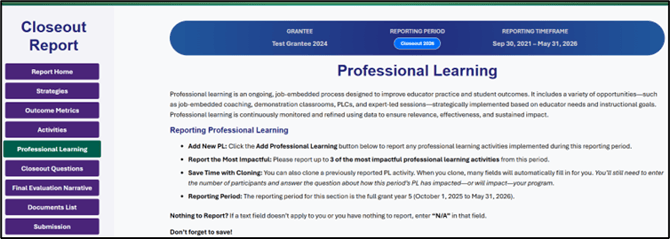
Edit Existing Professional Learning: To review or make changes to any rows in the current reporting period’s PL table, use the corresponding Edit and Delete buttons as needed.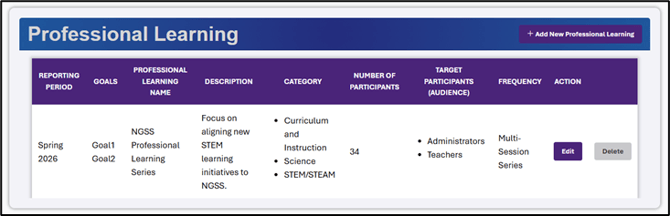
Add New Professional Learning: Use the +Add New Professional Learning button to report up to three most-impactful PL activities implemented during the reporting period. This button will only appear if the three-PL maximum has not been met.
In the Add/Edit Professional Learning window, follow the prompts and respond to all related questions using the multiple selection boxes and text boxes.
Be prepared to provide the following information:
- T
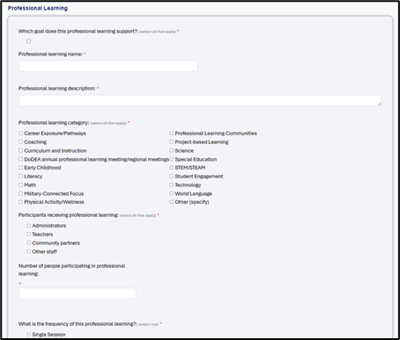 he goals with which the PL is associated
 - The PL name and description
- The PL category
- Participant types and totals
- Frequency
- Primary format
- Entity who delivered the PL
- Impact or anticipated impact of the PL to the program
- Monitoring of PL implementation
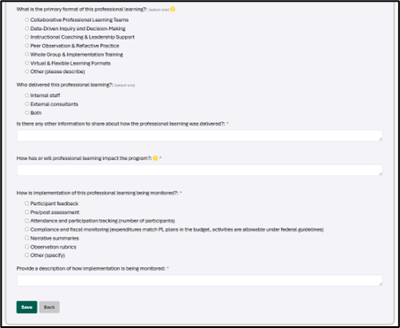
Note: Use the hover-for-help yellow question marks to access additional examples and explanations.
Save Your Progress: Click the Save button to ensure your entry is added to the PL reporting table.
Cloning a Prior Professional Learning: If the PL you are reporting on is similar to or a continuation of a previous PL activity, you may wish to clone that prior PL rather than creating a new one. This function supports reporting continuity and can save you time filling out details.
To clone a PL from a prior reporting period, complete the following steps:
-
Scroll down to the Professional Learning (Other Reporting Cycles) section and find the PL row you want to copy.
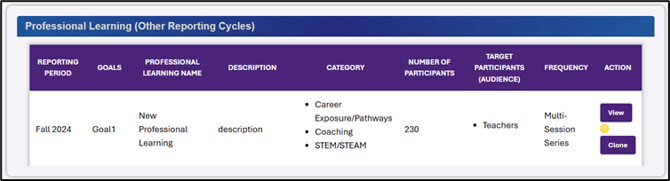
- Click the Clone button.

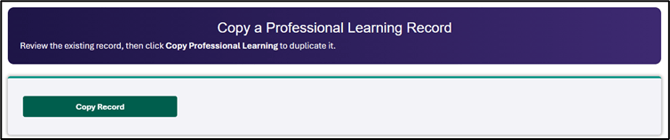
- Review the PL details and select Copy Record. This will prepopulate most of the fields in the Add/Edit Professional Learning window. See steps 4-7 for fields that will need to be updated manually.
- Confirm the goal with which the PL is associated.

- Update the name of the PL from the copy placeholder text provided.

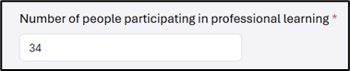
- Fill out the number of participants for the current reporting period.
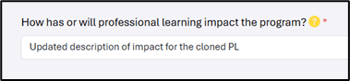
- Adjust any other fields as needed. Be sure to update your answer to the program impacts question as part of this process.
- Click the Save button to ensure your updated version of the cloned PL is added to the PL reporting table.
Professional Learning Summary: After adding up to three PL activities for the reporting period, respond to the questions at the end of the page. Briefly describe how PL impacts were monitored and any innovative solutions implemented to address PL challenges.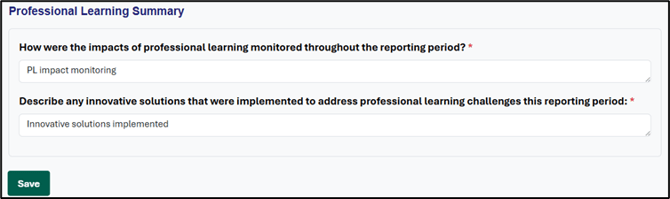
Save Your Progress: Click the Save button to ensure your entries are recorded before moving to the next section.
Closeout Questions
This section lists four questions for narrative responses that take the whole 5-year grant life cycle into consideration. Responses can be typed directly into the text fields or copy/pasted. If you need more space, select the bottom right corner of the text field and drag down to expand it.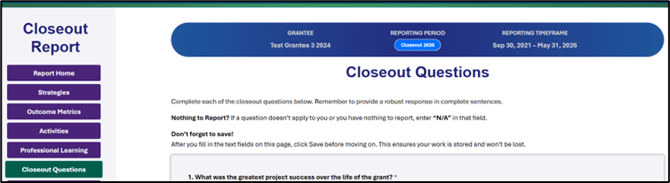
Questions:
- What was the greatest project success over the life of the grant?
- What were the most significant outcomes or impacts achieved over the life of the grant?
- What lessons learned or advice would you share with other grantees or future cohorts?
- Do you have any comments for the DoWEA program for future improvement?
Final Evaluation Narrative
This section is for uploading the Final Evaluation Narrative written by the grant’s Evaluator. The narrative may be up to 20 single-spaced pages of 12-point Times New Roman font with 1-inch margins and should be attached to the report form as a PDF. Before uploading the document, ensure the cover page is included and review the guidelines for the report structure and content.
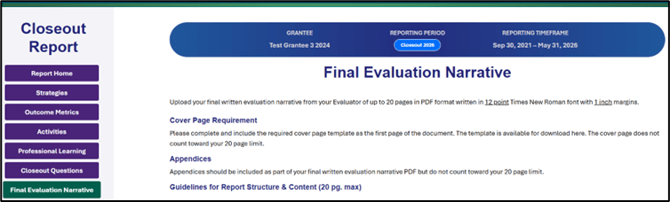
Cover Page Requirement: Complete and include the required cover page template, available for download directly from the report form.
- Executive Summary/Abstract: Provide a high-level synthesis of the five years of the grant, including key achievements, outcomes, and strategic insights.
- Context & Goals: Reflect on how the context evolved over five years and whether the original goals achieved what was intended. Discuss adaptations and evolution of the program.
- Evaluation Methods: Describe how data were collected across the 5 years, triangulation of multiple data sources, and any changes in evaluation design during the life of the grant.
- Outcomes & Impact: Integrate data across all five years of the grant to assess the overall trajectory and sustainability of outcomes. Discuss any patterns or trends that emerged across the life of the grant and address any unexpected outcomes, whether positive or negative. Curate a few signature stories or case studies that capture the 5-year journey or impact.
- Capacity Building & Organizational Change: Assess changes in capacity, partnerships, policy, or practices.
- Learning & Adaptation: Highlight the program's evolution of learning and how program changes and adaptations over the five years helped shape success or failure. Include a section on lessons learned organized around themes (e.g., leadership transitions, data systems, partnerships).
- Sustainability & Future Outlook: Present which outcomes, systems, or capacities are expected to endure post-funding. Address sustainability strategies and remaining vulnerabilities or challenges.
- Appendices (as needed; not included in page count): Include any relevant supplemental materials, such as data tables, timeline of milestones or inflection points, instruments, or partner lists.
Upload Narrative File: Click the Choose File button to select a document from your local files. Then, click Upload Narrative to attach it. Documents must be uploaded in PDF format.
Download or Delete: Use the corresponding buttons to download a copy of the file or remove.
Add Narrative Notes: If needed, use the Narrative Notes text field to provide explanatory comments regarding the attached Final Evaluation Narrative.
Save Your Progress: Click the Save Note button to ensure your entry is preserved before moving to the next section.
Documents
This optional section provides the opportunity to upload supporting files such as event photos, articles, or media coverage; and data collection tools or instruments. Adding supporting files is optional. If you plan to do so, please upload before submitting your report.
Note: This section is for supplemental files only. If you still need to add the Final Evaluation Narrative, return to Closeout Documents to do so.
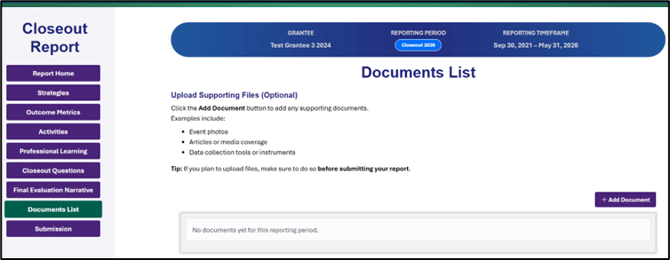
Add Document: Use the +Add Document button to upload supporting documents. PDF, Word, PowerPoint, Excel, and Image file types are all accepted. There is no document size limit.
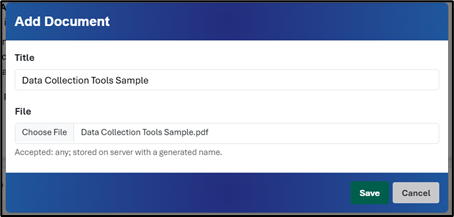 Title Your Upload: In the Add Document pop-up window, provide a title that reflects the purpose of the document in the context of the report. There are no limitations to the types of characters that can be used in the title. You will need to complete this step to save the upload to your documents list.
Download and Delete: Use the corresponding buttons on each document row to save a file to your computer or to remove it from the document table as needed. 
Submitting the Report
This section prompts completion and/or verification of completion of required financial forms—including the final annual financial report and (if applicable) the tangible property report–before formally submitting the closeout report.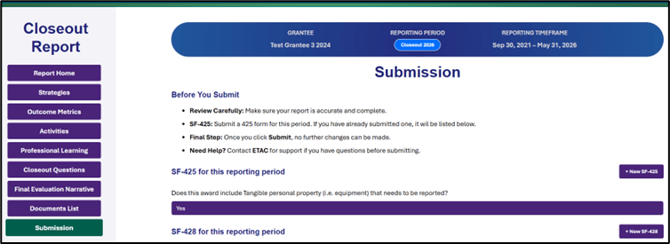
Annual Financial Report (SF-425)
If you have already started or submitted a SF-425 (annual financial report) for the current reporting period, the form and its status (draft or submitted) will be listed in the SF-425 table. To start a new form, click the +New SF-425 button. For guidance on completing this form, see Annual Federal Financial Report (SF-425).
Tangible Property Report (SF-428)
If you have any tangible property (equipment) to report, select Yes on the corresponding dropdown menu. This will pull up a table where you can view and add SF-428 reports.
If you have already started or submitted a SF-428 (tangible property report form) for the current reporting period, the form and its status (draft or submitted) will be listed in the SF-428 table. To continue editing an existing draft, click the Edit button on the corresponding row. To start a new form, click the +New SF-428 button. For guidance on completing this form, see Tangible Personal Property Report (SF-428).
Report Submission
Review Your Work: After completing all required sections, check over the final version of your report to ensure everything is accurate using the sidebar navigation or the Previous button to return to earlier sections of the report.
Submit Report: Click the Submit Report button to send the report to the DoWEA program team for review and approval. When you do so, green text will appear confirming the success of the submission. 
Note: Clicking Submit will lock the form for further editing and send it to the DoWEA program team. You cannot retract or edit a form after it has been submitted. Making updates at this stage will require reaching out to ETAC for assistance prior to the reporting deadline. Forms you create are not visible to the DoWEA program team until they are submitted.
Submission History: After you click Submit, the submission history will update with the timestamp of your submission, the new status, and the person who made the change. A new Timestamp row appears for each new status through which the form passes (e.g., In Progress, Submitted, Rejected, Resubmitted).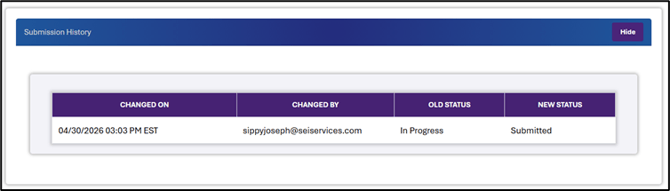
Next Steps
Update a Submitted Report: If, after submitting a report, you need to make an update, please contact ETAC at support@dodeagrants.org before the reporting deadline. 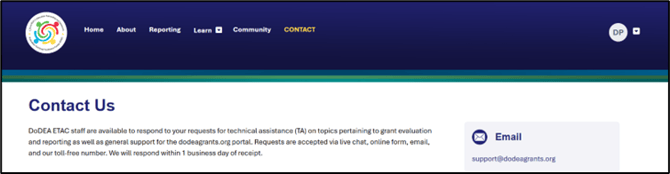
Note: Making updates involves returning a submitted form to draft status. After making your updates, you will need to resubmit your form before the reporting deadline to ensure the grant is in compliance.
Edit, View, or Print Your Report: Return to the Closeout Reports area of the Reporting Dashboard and use the filters to locate your report. Use the corresponding buttons to View the report, or Print a copy for your records.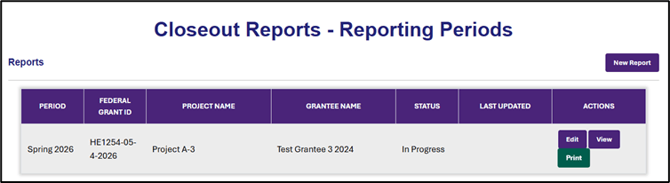
Additional Guidance
Need support with another aspect of the Reporting Dashboard or a different type of report? These articles can help:
The Reporting Dashboard
Financial Reporting