
Last updated 3/23/2026
Contents
- Reporting Dashboard Contents
- Reporting Access by Role
- Accessing the Reporting Dashboard
- Grantee Profiles
- Programmatic Reports
- Financial Reports
- Archived Reports
- Report-Specific Guidance
Reporting Dashboard Contents
The Reporting Dashboard on the DoWEA Evaluation Technical Assistance Center (ETAC) website provides access to the following areas:
- Grantee Profiles
- Semester Reports (Fall and Spring)
- Annual Reports (Coming Soon)
- Closeout Reports (Coming Soon)
- Financial Reports (SF-424, SF-425, and SF-428 forms)
- Archived Reports

Reporting Access by Role
Reporting access varies according to your role and is limited to the grant(s) with which your profile is associated.
- Project directors: Can create and submit all programmatic reports and financial forms.
- Financial staff: Can create and submit financial forms and can view but not edit other reports.
- Team members: Can view but not edit all programmatic reports and financial forms.
- Evaluators: Can view but not edit programmatic reports. Evaluators cannot view a grantee’s financial information.
Accessing the Reporting Dashboard
- Go to the ETAC homepage.

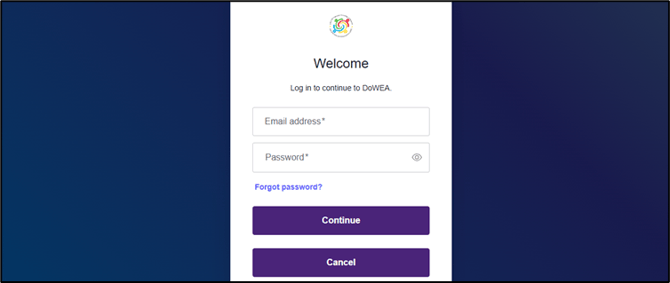
- Sign into your account using the Login button in the top right corner of the homepage.
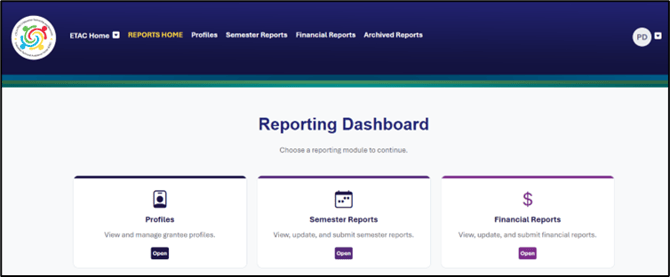
- Select Reporting from the navigation menu to enter the Reporting Dashboard.

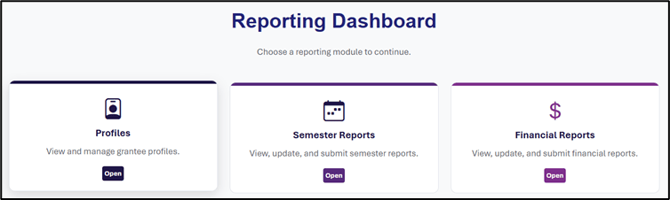
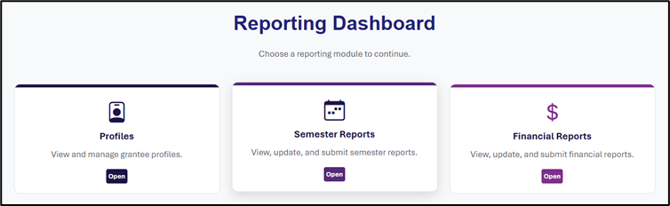
- Access a category by opening the corresponding dashboard card.
Grantee Profiles
Accessing Profiles: Use the following steps to find and view grant profiles with which you are associated.
- Open the Profiles card on the Reporting Dashboard to access the Grantee Profiles Grants List.
- Use the Keyword Search and Award Year drop-down filter to locate the grant profile you want to view.
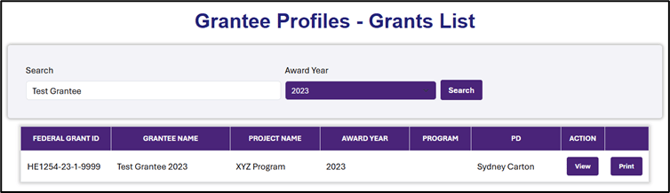
- Click the View button on the line corresponding to your desired grant to open the profile.

Navigating Profile Sections: Grant profiles include a grantee summary, abstract, financial information, goal statuses, activities, professional learning, monitoring, and evaluation details. Use the Next and Previous buttons to move through the profile, or jump to your desired section with the sidebar menu buttons. 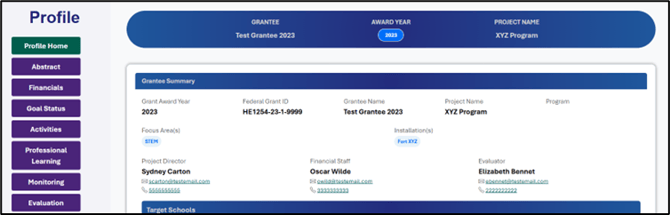
Note: Profile information populates from the original grant application project narrative, previously submitted reports, and other records entered by the DoWEA program and ETAC teams. If you need to make an update to a grantee profile, reach out to ETAC at support@dodeagrants.org.
Printing Profiles: To download a copy of a grantee profile, find the corresponding line in the Grantee Profile Grants List and select the Print button. This will open a new browser window with a PDF version of the report that you can save or print.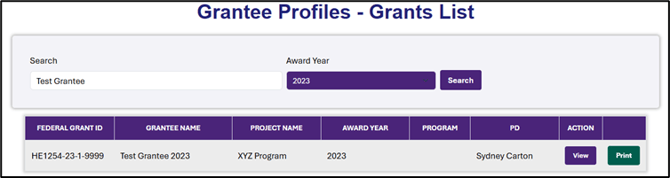
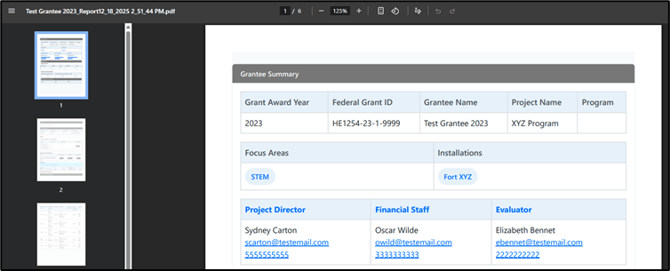
Note: It may take a few moments for the system to prepare the PDF version of the profile. Because profiles can become lengthy with the accumulation of detailed monitoring and evaluation records over time, you may wish to select a subset of pages to print.
Programmatic Reports*
Accessing Reports*
Use the following steps to create or view programmatic reports for the grant(s) with which you are associated.
-
Open the card for the programmatic report you want to complete on the Reporting Dashboard to access the Grants List specific to that category.
- Use the Keyword Search and Award Year drop-down filter to locate the grant you want to select.
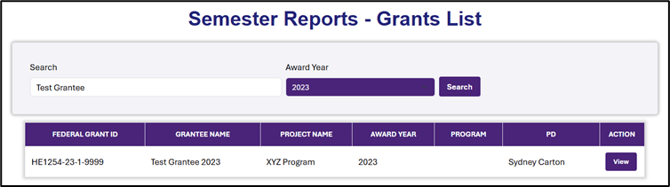
- Click the View button on the line corresponding to your desired grant to see all existing reports, and to edit or create new reports within the selected reporting category.

Back to Top
Creating and Editing Reports*
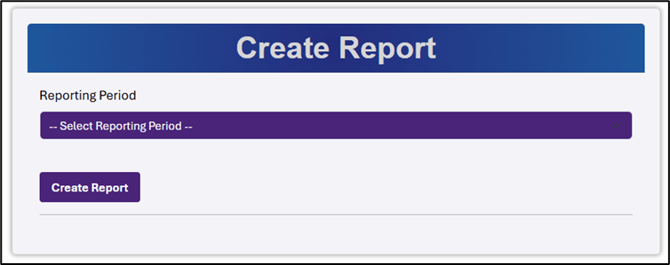
Creating a New Report: Select the +New Report button in the upper right corner to start a new report form. Then, as applicable, select the current grant reporting period from the Select Reporting Period drop-down menu and click the Create Report button.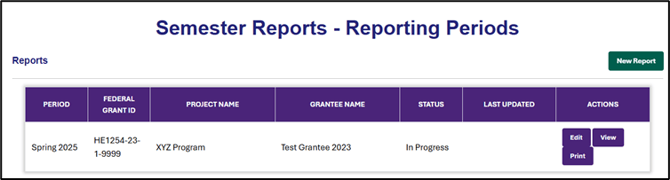
Editing an Existing Draft: To continue working on an existing report draft, find the corresponding line and click the Edit button.
Navigating Report Forms*
 Navigation Buttons: Use the Next and Previous buttons pinned to the bottom right corner of your screen to advance to the next page or go back to the previous page.
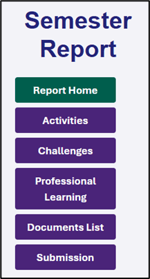 Sidebar: Jump directly to specific sections of the report using the sidebar on the left side of the screen, which lists all sections of the report and provides links for easy access.
Instructions: Before beginning a section, read any directions posted at the top of the page beneath the blue banner.
 Hover-for-Help Icons: Hold your cursor over the yellow question symbols throughout the form for additional information, such as tips, definitions, and examples.
Prefilled Items: For your convenience and to support reporting accuracy, some lines have been prefilled based on your grant profile. If you need assistance updating a prefilled line that is locked for editing, contact ETAC at support@dodeagrants.org.
Mandatory Sections: Required fields denoted with an asterisk must be completed in order to execute actions such as attaching a document or submitting the report. If you attempt to proceed to the next step without completing a required field, an error message will prompt you to provide any necessary information before moving forward.
Note: If a text field is required but does not apply or you have nothing to report for that section, enter “NA”.
Saving Your Work: When creating a new report, the system automatically saves it as an In Progress draft. As you edit the report, use the Save buttons provided to ensure your entries are recorded before navigating away from a page or exiting the report draft.
Viewing and Printing Reports*
Viewing Reports: To open view-only versions of reports (particularly those that have been submitted and can no longer be edited), find the corresponding line and select the View button. 
Printing Reports: To download a copy of a report for your records, find the corresponding line and select the Print button. This will open a new browser window with a PDF version of the report that you can save to your computer and print all or selected pages.
Note: As with printing a grantee profile, it may take a few moments for the system to prepare the PDF version of a report.
* Reporting access varies by user role. See Reporting Access by Role on page 1 for more information.
Interpreting Report Statuses*
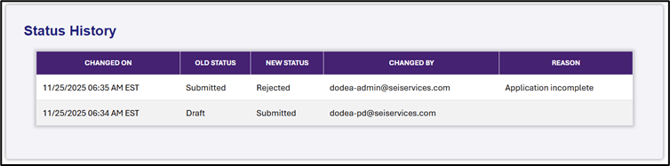
Status Labels: The status column in the Reports table identifies the current stage of the report (In Progress, Submitted, Approved, etc.). Timestamps and other information on the status can be found in the Submission History table on the final page of the report itself.
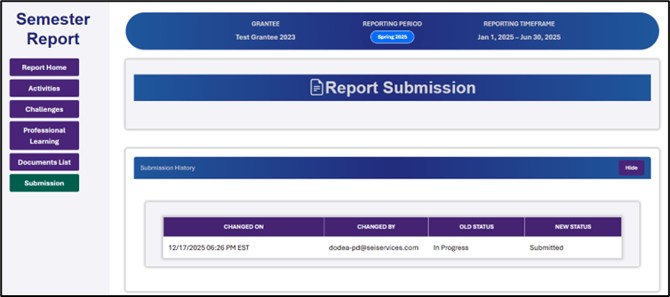
Status Meanings: As reports move through the creation and approval process, they pass through some or all of the following statuses:
- In Progress: Reports that have been created and saved as a draft but not yet submitted.
- Submitted: Reports that have been submitted to DoWEA for review.
- Approved: Reports that have been reviewed and approved by the DoWEA program team.
- Rejected: Reports that have been reviewed by the DoWEA program team and require changes before approval.
- Resubmitted: Reports that were rejected upon initial review and were subsequently updated based on feedback and sent back to the DoWEA program team for a second round of review.
Note: In the event that the DoWEA program team does not approve a report as-is, follow any directions provided to revise and resubmit it.

* Reporting access varies by user role. See Reporting Access by Role for more information.
Financial Reports*
Financial Reporting Dashboard: Open the Financial Reports card on the Reporting Dashboard to access a finance-specific dashboard where project directors and financial staff can create, edit, and submit SF-424, SF-425, and SF-428 forms for their associated grant(s).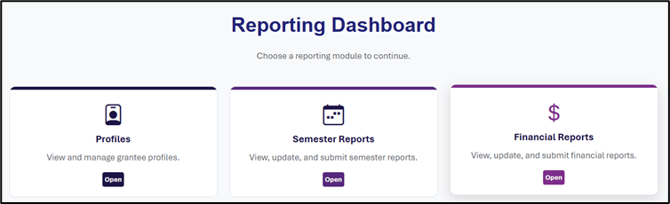
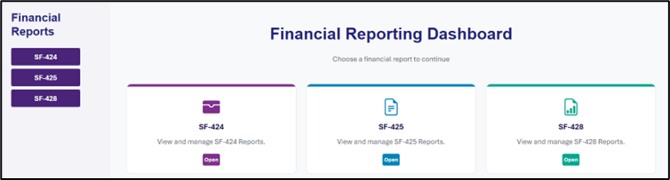
Note: The structure of the Financial Dashboard resembles other areas of the reporting system with a few differences in features and organization. See Navigating the Financial Reporting Dashboard for information specific to this part of the system.
* Reporting access varies by user role. See Reporting Access by Role for more information.
Archived Reports*
Accessing Reports from Before 2026: To access reports that were submitted through the old reporting system prior to January 1st, 2026, select the Archived Reports tab in the menu.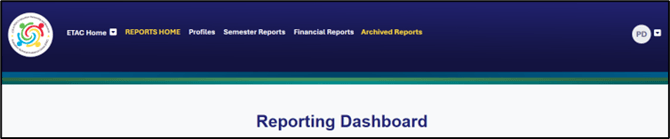
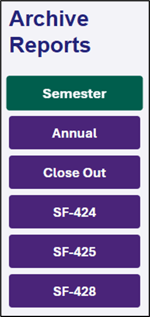
Sidebar: Select the type of report you are looking for in the sidebar menu. This will display a list of all archived reports within the selected category for any grant associated with your account.
Search: To narrow down your results, enter search terms in the fields provided and click the Search button.
Note: For the Reporting Year search field, enter the first year of the reporting year range to receive the most useful results.
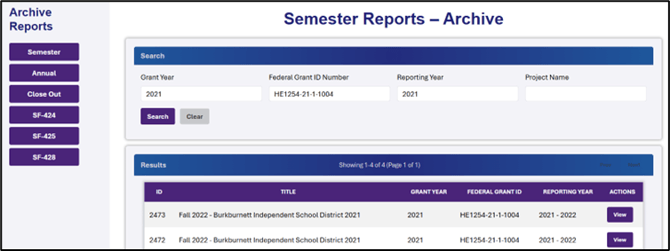
View Archived Report: Once you’ve identified your desired report, select the View button in the corresponding row to open a read-only version of the report.
* Reporting access varies by user role. See Reporting Access by Role for more information.
Report-Specific Guidance*
Need support with filling out and submitting a particular programmatic or financial report? The following articles can get you started, and additional programmatic reporting guidance will be released throughout 2026:
Programmatic Reporting
Financial Reporting
- Budget Change Request (SF-424)
- Annual Federal Financial Report (SF-425)
- Tangible Personal Property Report (SF-428)
* Reporting access varies by user role. See Reporting Access by Role for more information.